
Table Branding Manager · Full edition
Design the brand once. Apply it everywhere.
PowerPoint has no built-in way to create custom table styles. The Full edition adds that missing editor, and lets you reuse the same design in Word and Excel too, without rebuilding it by hand.
One design authority for the Office suite
Design teams can define one or more branded table styles and reuse them across Word, PowerPoint and Excel without rebuilding the formatting in each application.
That means the same headers, banding, borders and color logic can be applied consistently across templates, reports and presentations.
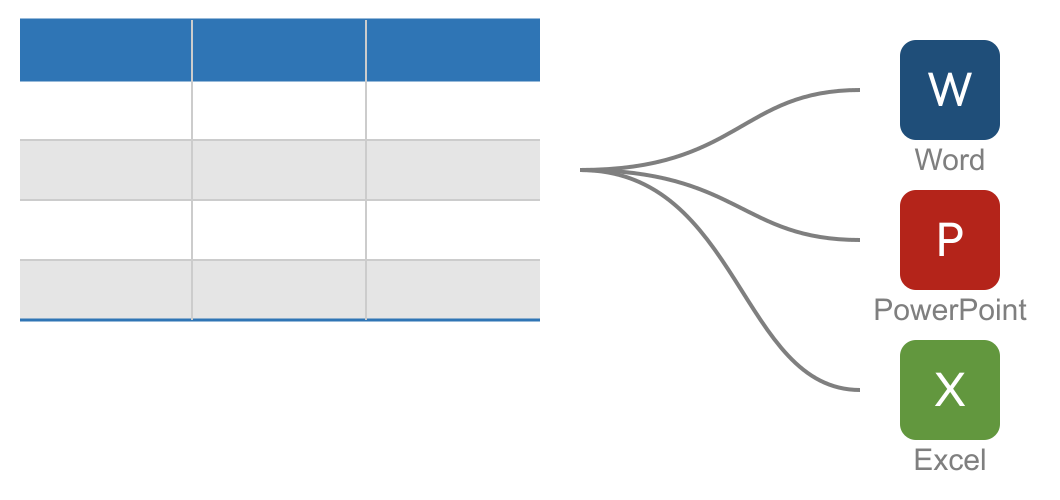
One style file. One consistent brand.
Export the approved design as a .ksstyle file and reuse it in Word, PowerPoint or Excel. The result is a single visual standard across departments, templates and documents.
Style
Save as
Update brand tables for existing documents
When a template changes, existing documents do not automatically follow it. The Full edition lets design owners define the new standard in templates. Individual users can then import the approved style into their own documents without changing the master design.
Need to update your own existing documents? The Import-only edition lets employees import new and updated styles into their own documents, without being able to change the approved design.
Replace a color in seconds
Duplicate an existing style and open Replace color: you see every color used in the style in one overview, across fill colors, borders and font colors in every table part.
Colors that recur across multiple places are grouped automatically, so you can replace a single brand color in one action instead of changing the header row, total row and banded columns one by one.
Colors in use
Banded rows · border
Watch it in action
Same style, new color
Need the same table style with different colors? It's a two-step job: duplicate the style, then use Replace Color to swap every color — wherever it's used in the style — in one go.
Within the technical boundaries
Honest about the limits
Word, PowerPoint and Excel store table styles in different ways, and each application supports different table properties. The editor focuses on the settings that matter in real-world branding work.
No gradient or pattern fills. Some browser-like styling options exist in Office, but they are not part of the typical branded table style workflow. The editor keeps the experience focused and practical.
Font size and underline are not controlled in PowerPoint table styles. That belongs to the presentation theme or text formatting, not the table style itself. The tool supports the options that are actually configurable in each program.
Cell margins are only supported in Word table styles. PowerPoint and Excel do not expose that setting at the table style level, so it is not configurable there.
The Full edition supports the table style options used in professional templates in practice. Anything that is already in a style but not supported by the editor is preserved as-is.
Who is the Full edition for?
It is designed for teams that own the brand and need a single source of truth for table styling across Office documents, templates and departments.
Template owners
Define and maintain the approved table standard centrally.
Brand teams
Keep styling consistent across reports, proposals and presentations.